You decide whether new booking requests confirm automatically or wait for your review. Set this once, then handle requests as they come in.
Auto-approve vs. review each
In Settings → Booking Workflow, under Booking Approval, choose one:
- Auto-approve all bookings — the booking confirms and the renter's card is charged the moment they pay. Fastest for renters, no action needed from you. The trade-off: you don't get to check their driver's license or insurance before it's confirmed.
- Review each booking — you review the renter's DL and insurance, then approve or decline. Their card is only authorized (held), not charged, until you approve.
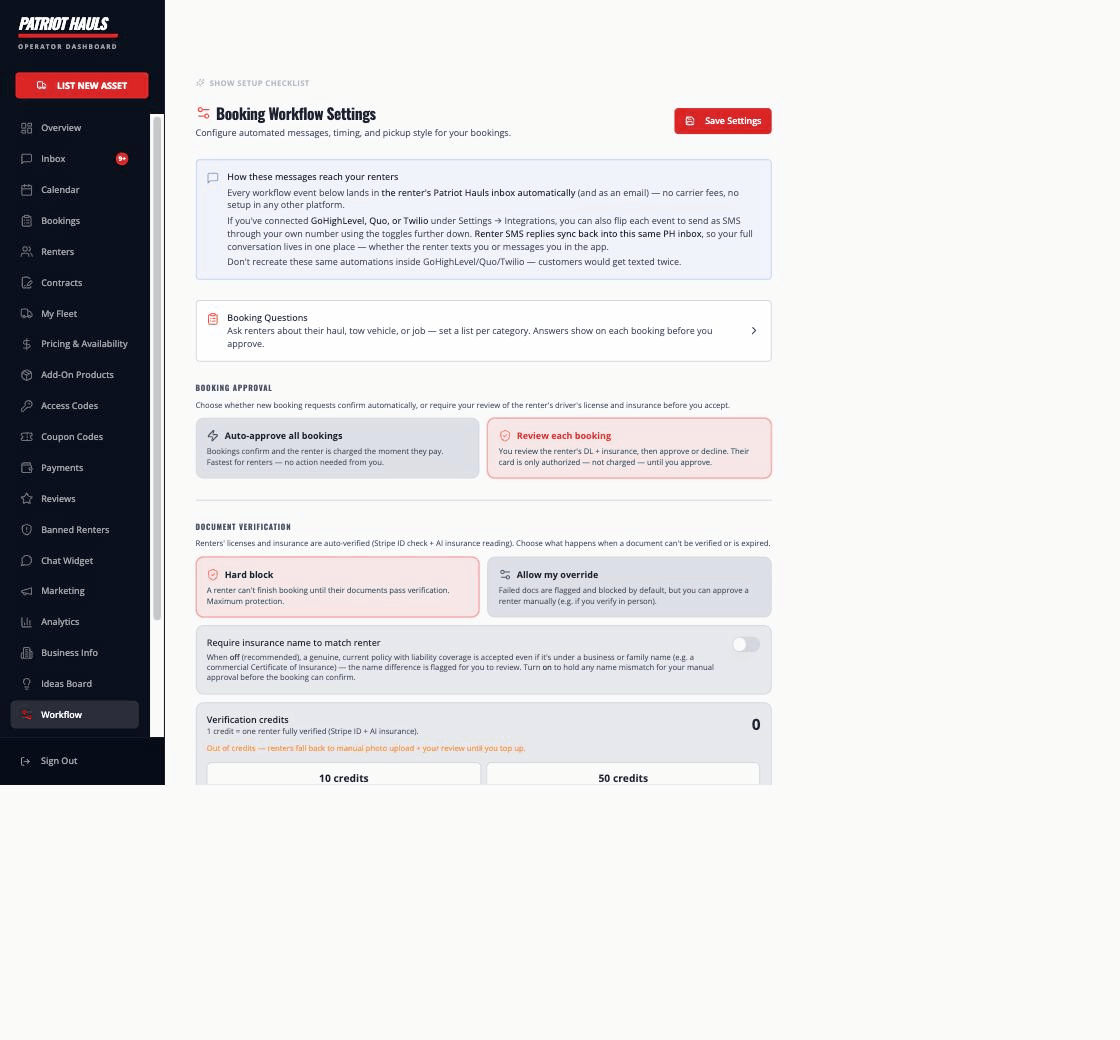
Tip: Review-each gives you the most control over who rents your units. Auto-approve is fastest but means you accept renters sight-unseen — switch to review-each if you'd rather vet every booking first.
How authorize-then-capture works
This is the part worth understanding, because it protects both you and the renter:
- In review-each mode, checkout places an authorization hold on the renter's card — the funds are reserved but not taken.
- When you approve, the held payment is captured (the card is actually charged) and the booking flips to Confirmed. This kicks off the confirmation message, contract link, and reminders.
- When you decline, the authorization is released — no charge, and the renter's hold drops off.
- In auto-approve mode, the charge is captured up front when the renter pays.
Payments run through your own connected Stripe account, so the money goes straight to you.
The clocks that run in review mode
Two timers apply to a pending request, and both work in your favor:
- Renter documents — 24 hours. After booking, the renter has 24 hours to submit their documents. If they don't, the booking cancels itself automatically and their card hold is released. You don't need to do anything, and your calendar frees back up.
- Card authorization — about 7 days. A card hold expires roughly 7 days after booking. Approve or decline before then — an expired hold can no longer be charged. If a request is still waiting 4 days after booking, we send you a reminder (push and email). On day 6, an unreviewed request is automatically declined: the hold is released, the renter is notified, and your calendar frees back up — so a forgotten request never expires uncharged while still blocking your dates.
In short: ignore no-shows (the system cleans them up), but act on real requests within a few days — after day 6 they're declined for you.
"If someone starts a booking but doesn't pay, will my trailer free up?"
Yes. An unpaid booking only holds the trailer for about 10 minutes. After that your calendar is open again — you, or another renter, can book those dates right away. The unpaid booking isn't charging anyone; it just sits as pending, and you can delete it whenever you like. So an abandoned checkout never quietly ties up a unit.
Approving or declining a request
A pending request shows in the Bookings list (the Pending tab) and on your calendar. To act on it:
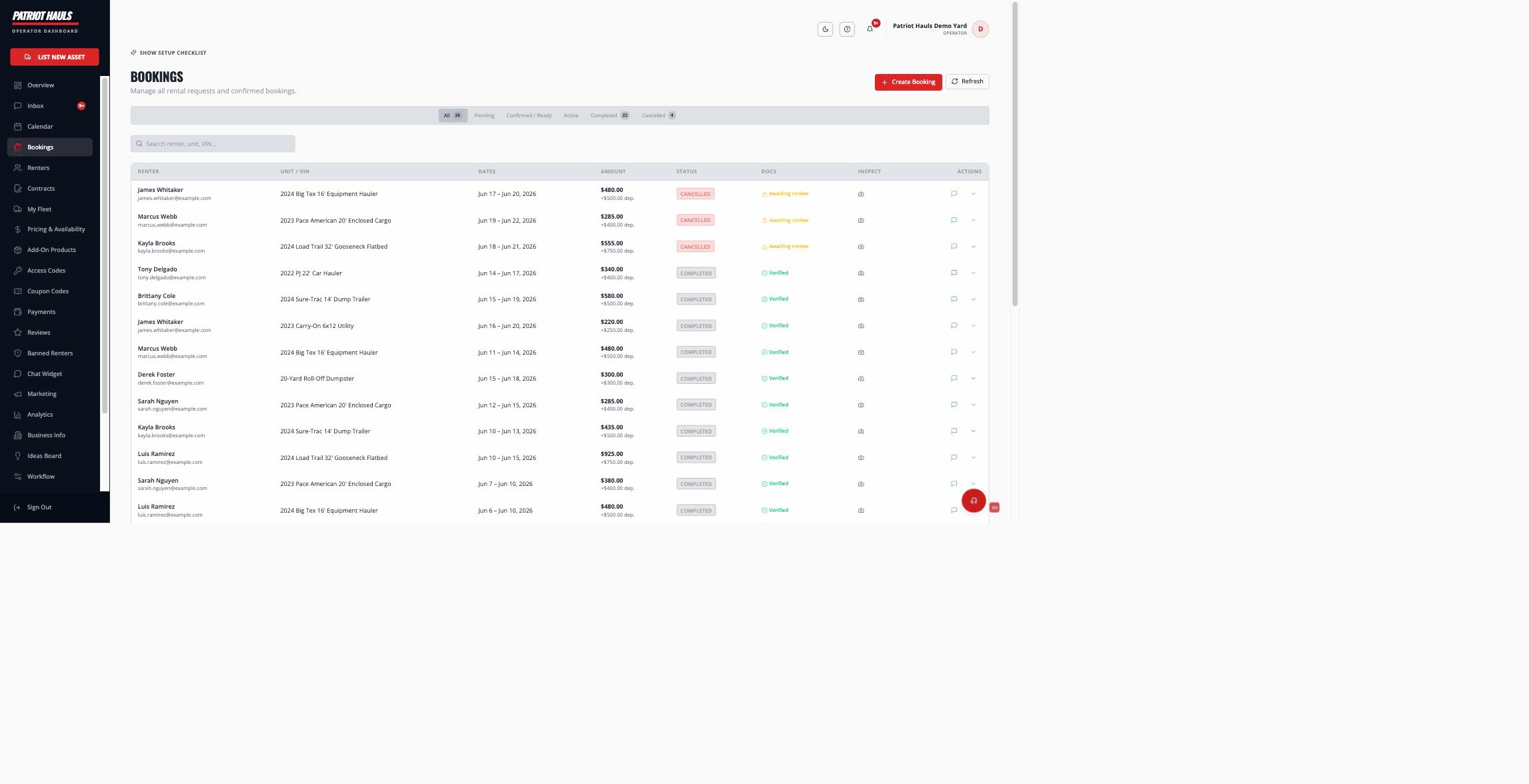
- Open the booking. Review the renter's documents in the Documents area — driver's license, proof of insurance, and what our verification confirmed.
- Click Confirm Booking to approve, or Decline Booking to release the hold. You can also use the row's dropdown menu (Confirm / Decline) right from the list.
On approval you'll see "Booking approved — renter's card charged." On decline you'll see the hold released.
Document verification options
Also under Booking Workflow, Document Verification controls what happens when a renter's documents can't be verified:
- Hard block — the renter can't finish booking until their documents pass.
- Allow my override — failed documents are blocked by default, but you can approve a renter manually (for example, if you verified them in person).
Related articles
Still need help? Tap the Support button inside your dashboard.