When a unit is down for repairs or you're closed, block those dates so renters can't book them. You do all of this from the Operator Calendar.
Block a single day on one unit
Click any open day cell for a unit to choose how to block it:
- Out of service (with a reason — maintenance/repair, personal/owner use, loaned out, or reserved/hold). This makes the unit unbookable and blocks the whole rental span that would include the day.
- Closed (no pickup/return). No pickup or return can happen that day, but rentals can still span across it.
To undo a block, click the cell again and choose Clear — make available.
Block a date range (maintenance)
To take a unit out of service for several days at once:
- On the calendar, click Put a Trailer on Maintenance.
- Pick the trailer, a From and Through date, and a reason.
- Click Mark Out of Service.
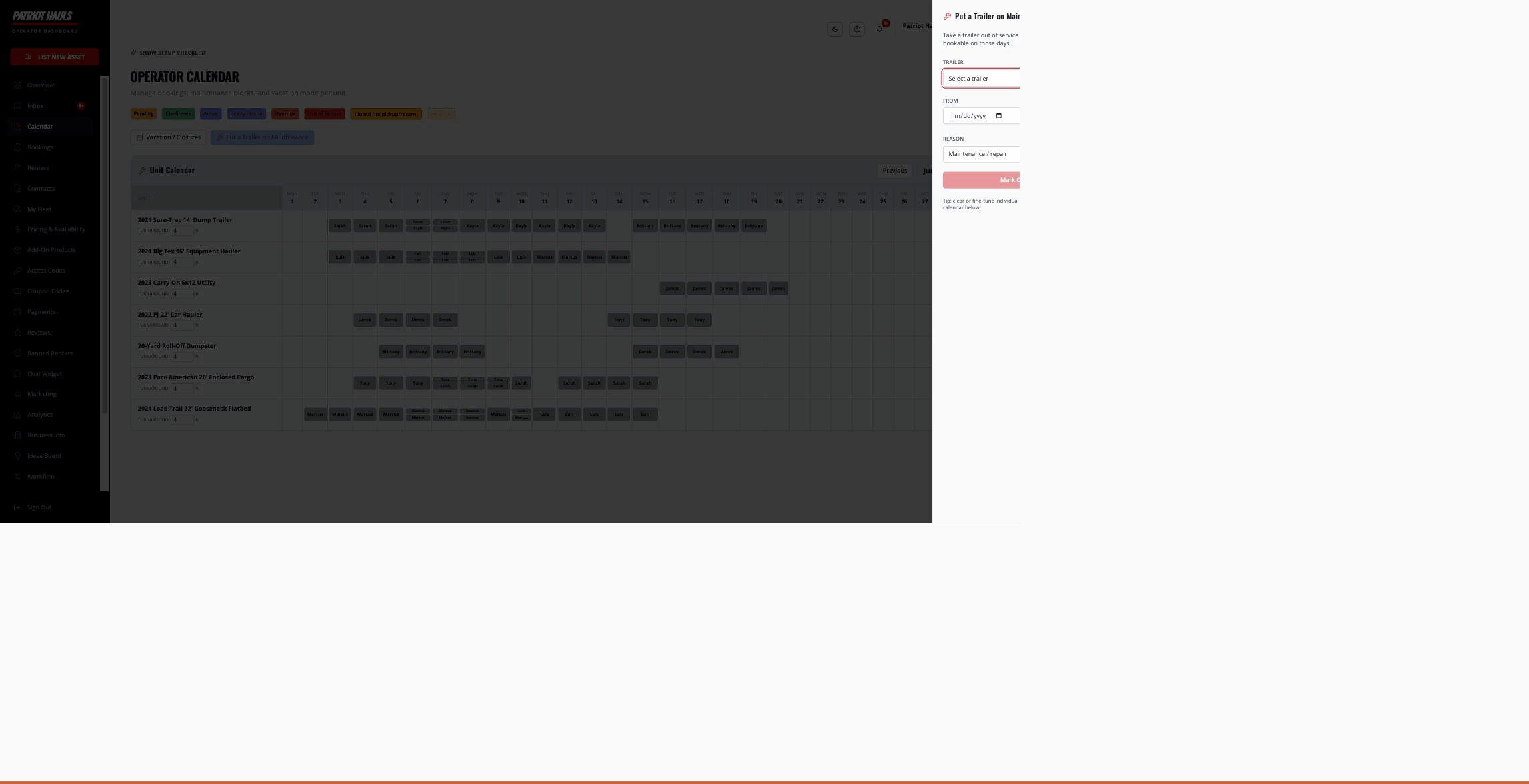
Every day in the range is marked out of service. You can still fine-tune or clear individual days afterward by clicking cells in the grid.
Vacation periods and closed weekdays
Click Vacation / Closures to manage business-wide closures:
- Vacation mode — a master on/off switch for your scheduled closures.
- Vacation periods — add up to 3 active date ranges (e.g. a week you're away).
- Closed every week on — pick weekdays you never do pickups or returns.
- Default turnaround buffer — hours between rentals for cleaning and inspection.
Heads up: Vacation and closed-weekday settings block pickups and returns on those days, but a rental can still span across them. To make a unit fully unbookable for a stretch, use Out of service / maintenance instead.
Related articles
Still need help? Tap the Support button inside your dashboard.