You don't have to run your operation from a single login. Patriot Hauls lets the account owner add other people — owners, managers, and staff — so your crew can handle bookings, messages, and the day-to-day without sharing one password.
Who can invite
Only an owner can manage the team. Managers and staff can use the account but can't add or remove people. If you don't see the Team page, your role doesn't have access.
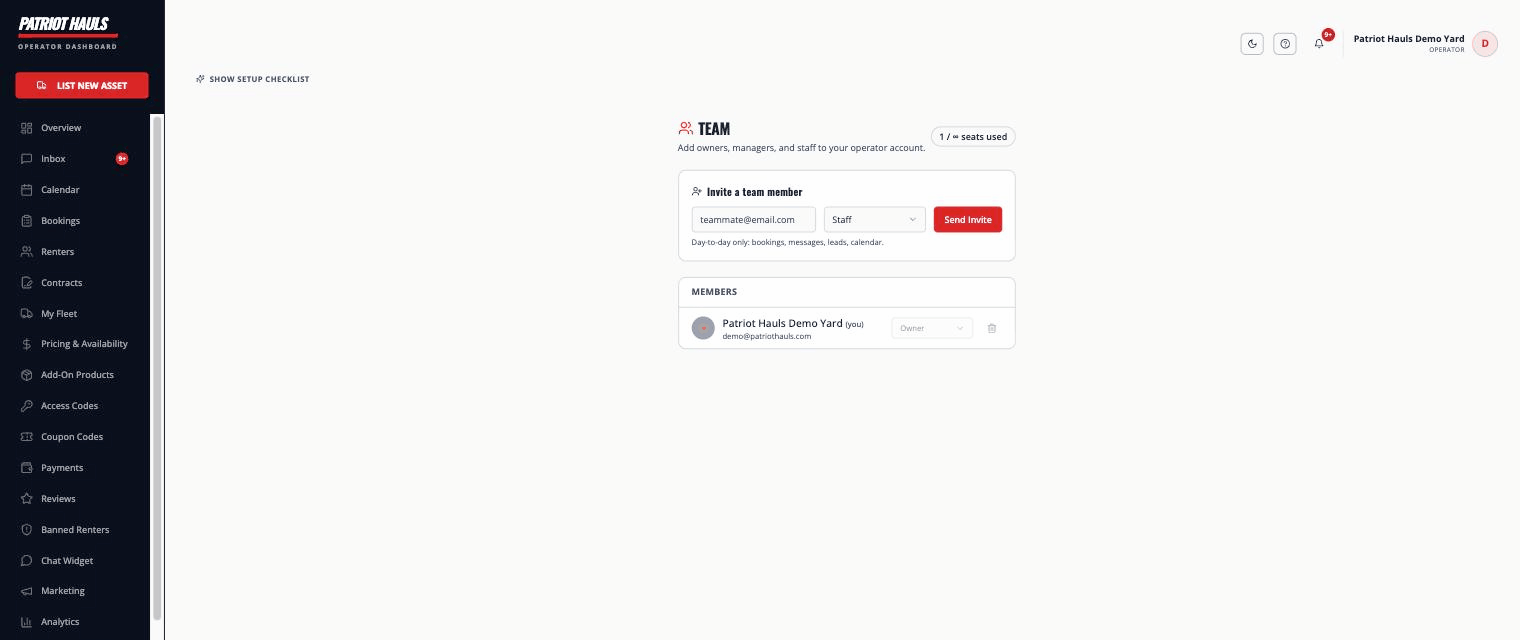
How to invite a team member
- Go to Settings → Team in your dashboard.
- In the Invite a team member box, type the person's email address.
- Pick a role: Staff, Manager, or Owner. A short description of what that role can do appears below the picker.
- Tap Send Invite. We email them a link to join your account.
The person opens the link, signs in (or creates an account with that email), and accepts. They land directly in your operator account with the role you chose. See team roles and permissions for exactly what each role can do.
Managing the team
From the same Team page you can:
- Change a role — pick a new role from the dropdown next to a member.
- Remove a member — tap the trash icon. They lose access but you can re-invite them later.
- Revoke a pending invite — tap Revoke next to an invite that hasn't been accepted yet.
Heads up: You always need at least one owner. You can't remove or demote the last owner — promote someone else first.
Seats and your plan
How many people you can add depends on your plan:
- Recruit / Free — just the owner.
- Operator — 2 seats.
- Elite — 7 seats.
- Fleet Commander — unlimited.
Seats count both active members and pending invites. If you hit your limit, upgrade your plan to add more. See plans overview.
Still need help? Tap the Support button inside your dashboard any time.