To take bookings online, you connect your own Stripe account to Patriot Hauls. Renters' payments then go directly into your Stripe account — Patriot Hauls never holds your money and takes no commission. Your Stripe account is completely separate from your Patriot Hauls subscription billing.
Connect your account
- Go to Dashboard → Payments → Payment Settings.
- Under Stripe Account, click Connect your Stripe account.
- You'll be sent to Stripe to log in with an existing account or create a free one. It takes about 5 minutes.
- Finish Stripe's steps, and you'll be returned to Patriot Hauls. The card flips to Active once Stripe is ready.
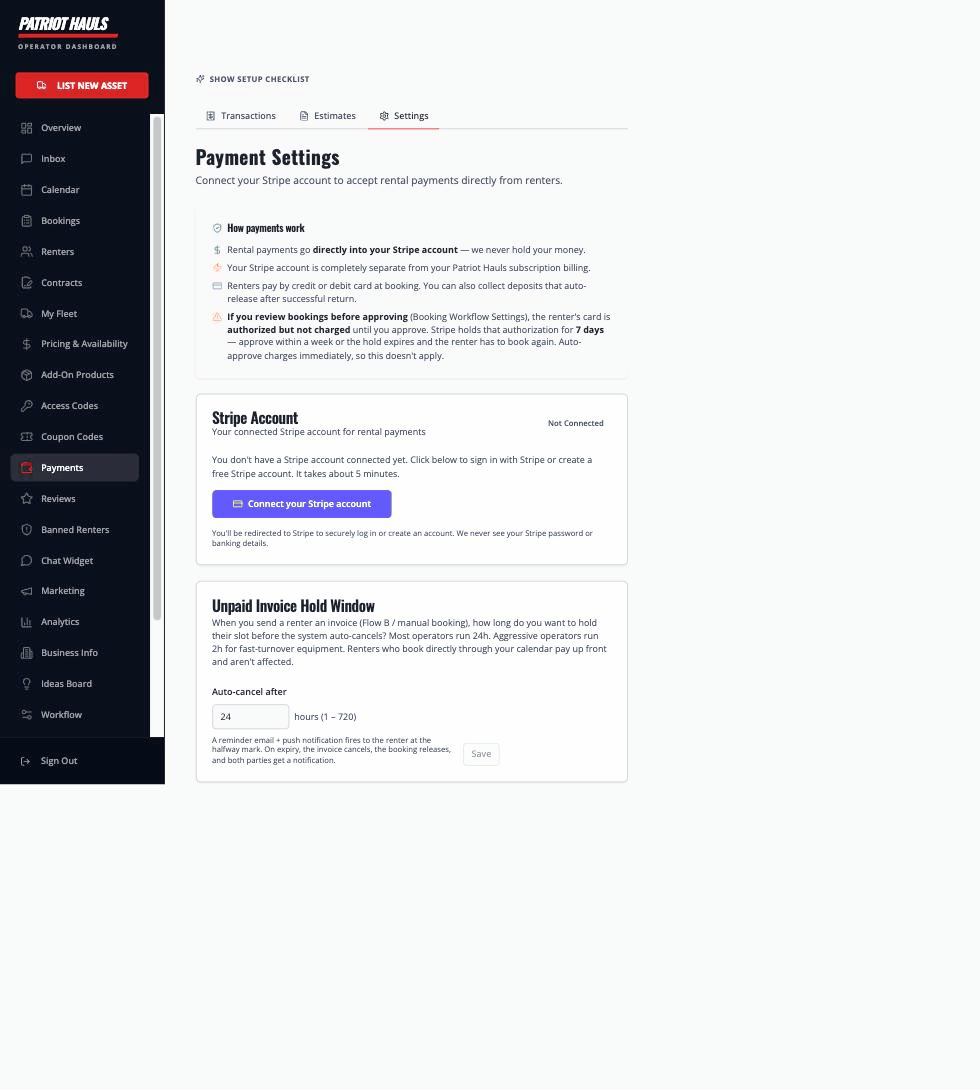
Good to know: You connect through Stripe's own secure page. Patriot Hauls never sees your Stripe password or your banking details.
What "Active" vs "Setup Required" means
After connecting, the status badge tells you where you stand:
- Active — charges and payouts are enabled. You're ready to take bookings.
- Setup Required — Stripe still needs more information before it can accept payments. Open your Stripe Dashboard from the link on the page and finish the remaining steps.
The card also shows your account name, Stripe email, country, and currency, plus whether Accept payments and Payouts are each enabled or pending.
Taxes, fees, and other settings
The same Payment Settings page lets you set:
- Sales tax rate — applied to the rental and add-ons (never the deposit).
- A processing fee (optional) — passed to the renter on the rental, add-ons, and deposit.
- Test Mode — run a full booking with a test card (
4242 4242 4242 4242) before going live. Turn it off before taking real customers.
Disconnecting
You can disconnect from the same page. Renters won't be able to pay for new bookings until you reconnect, but your existing bookings and payment records are untouched.
Next: see how you get paid and deposits and holds.
Still need help? Tap the Support button inside your dashboard.